
- PlayinMatch99
- PlayinMatch Install
PlayinMatch Install — Secure Two-Minute Sideload, Unknown Sources Toggle Once
PlayinMatch install starts where the download ends. Allow one source, tap the file, accept a single storage prompt, sign in. On most Android 8+ phones that is about 90 seconds of work, and the toggle never has to be touched again for later updates.
PlayinMatch Install Steps — Fast 90-Second Route From File to Lobby
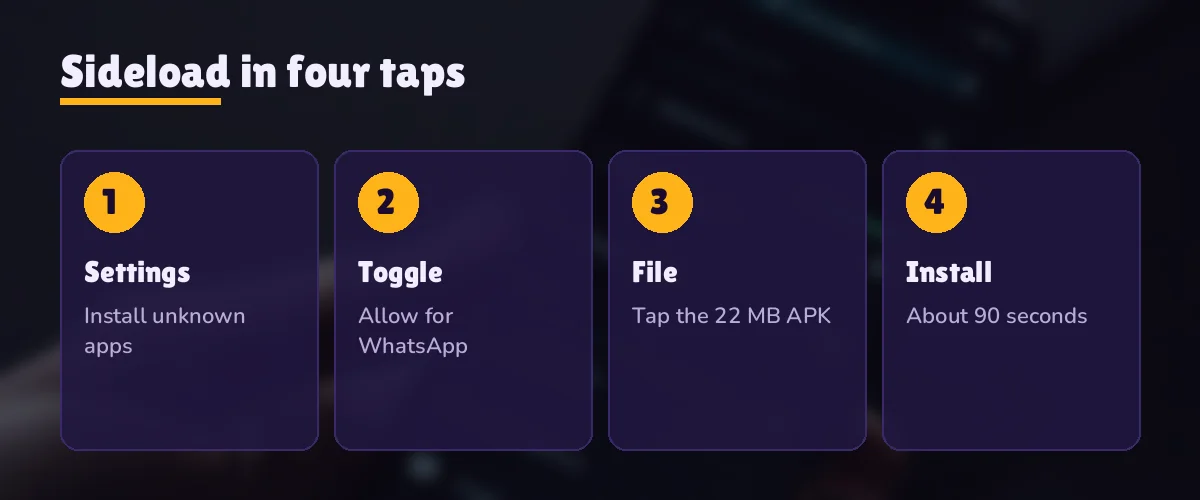
Six taps, more or less. The PlayinMatch file is already on your phone if you came here from the PlayinMatch app download page; if it is not, get it there first, because this page only covers what happens after the APK is saved. Everything below assumes Android 8 or newer, which is the floor the PlayinMatch build supports.
- Locate the APK. It sits in Downloads under a name starting with PlayinMatch. Size is the quick sanity check: roughly 22 MB. Something like 3 MB means the save broke halfway.
- Tap it once. Android stops and asks whether the app you used to open it (Chrome, Files, a browser) may install apps. That question is the unknown sources prompt.
- Allow this source. Switch on Allow from this source, then press back. The setting sticks to that one source app, so you will not see it again on the next update.
- Press Install. A sheet shows the PlayinMatch name and icon with an Install button. The write itself is short; usually well under half a minute.
- First open. Tap Open on the success sheet. A single dialog about files and media appears; say yes and the PlayinMatch99 splash moves on.
- Sign in. Username, password, the optional OTP if you have switched it on. The lobby loads with the same balance you see on the website.
Where the 90 seconds go, roughly: ten to find the file, twenty on the toggle (most of that is reading the screen), fifteen for Install, a few for the storage prompt and the rest typing a username and password. People who already flipped the toggle for some other APK skip step three entirely and finish closer to one minute.
The longer path is the one where something goes wrong — a cut-off download, an old PlayinMatch build still sitting on the phone, Play Protect getting nervous. Each of those has its own fix further down, in the error table. None of them take more than a couple of minutes once you know which message you are looking at.
One thing people miss: the PlayinMatch app is not on the Play Store, so there is no store page that installs it for you. The sideload described here is the normal route, not a workaround. That is also why the toggle exists at all.
PlayinMatch Install on Samsung, Xiaomi, Vivo and Realme — Easy Unknown Sources Toggle
The toggle is the same idea on every phone. Only the menu path changes, and phone makers love moving it between software versions, so treat the paths below as the usual spot rather than gospel. If you tap the PlayinMatch file before doing anything, Android normally pops up a Settings shortcut that jumps straight to the right switch, which is the quickest way on any brand.
Samsung (One UI). Settings, then Apps, then the three-dot menu and Special access, then Install unknown apps. Pick the app you downloaded with — Chrome or Samsung Internet for most people, My Files if you opened the PlayinMatch APK from there — and switch on Allow from this source. Older One UI builds put it under Biometrics and security instead.
Xiaomi, Redmi, POCO (MIUI or HyperOS). Settings, then Privacy protection or Additional settings depending on the version, then Special permissions, then Install unknown apps. Xiaomi phones sometimes add a ten-second warning countdown before the switch can be turned on. Wait it out. The PlayinMatch install continues normally afterwards.
Vivo (Funtouch OS or OriginOS). Settings, then Security or Security and privacy, then More security settings, then Install unknown apps. A few Vivo models also ask for your screen lock PIN before they let a sideloaded file through; that is the phone checking it is you, not anything PlayinMatch adds.
Realme and OPPO (Realme UI, ColorOS). Settings, then Privacy or Additional settings, then Special app access, then Install unknown apps. Realme also tends to show an extra screen reading something like this app may harm your device, with a small Install anyway link at the bottom. That screen appears for every APK from outside the store, not just PlayinMatch.
Should you switch it back off afterwards? You can. The installed PlayinMatch app keeps working either way. The trade-off is small: leave it on for the browser and future updates install in one tap, turn it off and you repeat step three each time a new build comes out. Most people leve it on for the one browser they trust and off for everything else, which is probably the sensible middle.
Xiaomi's Second space and the Dual apps feature on several brands are worth a mention (they confuse more people than the toggle does). An APK installed in the main space does not appear in the second one. If you run PlayinMatch inside Second space, tap the file from inside that space so the install lands there.
Motorola, Nokia and other near-stock phones keep the switch at Settings, Apps, Special app access, Install unknown apps. Same switch, fewer layers.
PlayinMatch Install Permissions — Safe Storage-Only Prompt, Nothing Extra
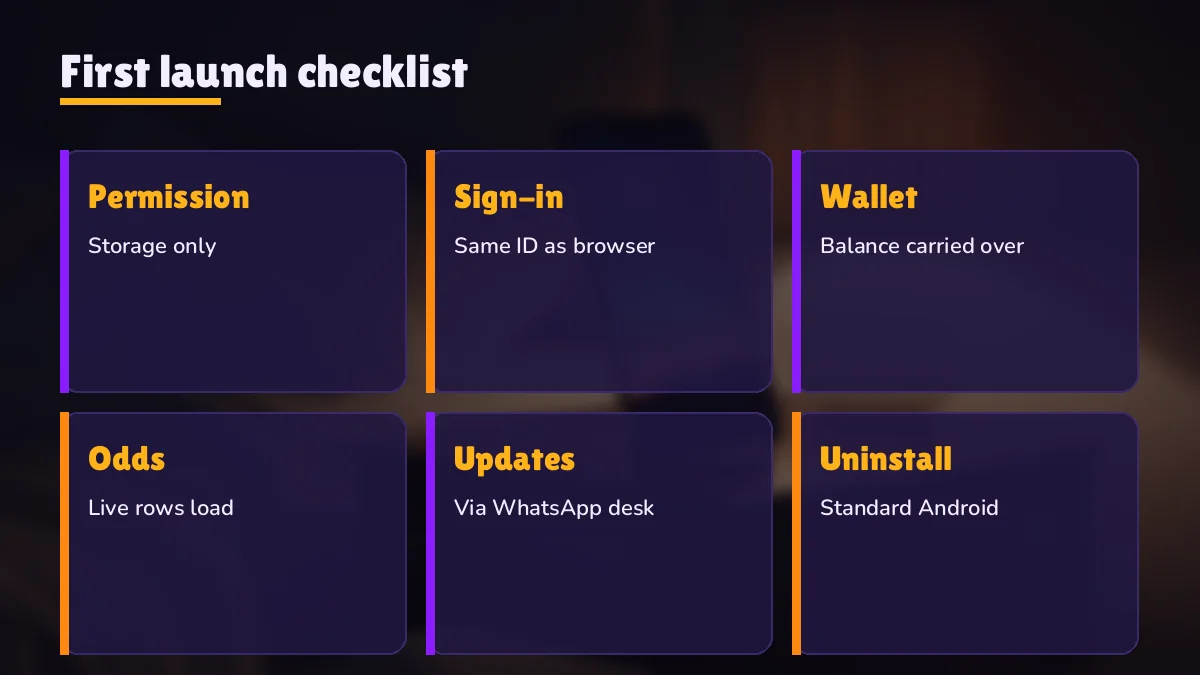
Storage. That is the whole list. When the PlayinMatch app opens for the first time it asks for access to files and media, and that request is the only permission dialog you should ever see from it. The PlayinMatch safety page covers the wider security setup; this section sticks to what the phone shows you during setup.
What storage is used for. The app keeps its own cached files and saves a newer build when an update is ready. Without storage access it still opens, but updates and some cached images can fail, so saying yes saves a headache later. You can check the grant any time under Settings, Apps, PlayinMatch, Permissions.
What it never asks for. Contacts, SMS, call logs, location, camera, microphone. If a file calling itself PlayinMatch pops up asking to read your messages or to become an accessibility service, stop. That is not the build the PlayinMatch99 desk hands out. Delete it and take a fresh copy from the download page.
Newer Android versions (13 and up) split storage into photos, videos and audio, so the wording on screen might read Allow PlayinMatch to access photos and media instead of a plain storage line. It is the same grant under a different name. On Android 8 and 9 the dialog is simpler and just says files.
A Google warning between Install and Open is not a permission at all. It comes from Play Protect, and it fires for PlayinMatch simply because the build was never uploaded to the store, so Google has no developer record to match. Expand the warning with More details and pick Install anyway. A second question about sending the file for a scan may follow. Yes or no, the PlayinMatch install carries on the same.
Notification access is the one grey area. Android 13 and newer may ask whether PlayinMatch can send notifications, because the system now asks that of every app on first open. It is not a permission the app needs to work, so allow it or not as you like.
PlayinMatch Install First Launch — Quick Sign-In and a Lobby Check
The first screen after PlayinMatch install is the sign-in form: username, password and an optional six-digit OTP. The fields and the lockout rule are identical to the website, and the PlayinMatch login page explains them in full. Short version: three wrong tries lock the account for 15 minutes, so if a password fails twice, stop and check it before the third go.
No username yet. The app has no sign-up button of its own. IDs come from the WhatsApp desk in about five minutes — the join PlayinMatch page has the details — and the same username then works in the app, on the website and on every mirror address. You can install first and request the ID while the file writes. Plenty of people do it in that order.
Lobby check. Once you are in, glance at the wallet figure in the top bar. It should match what the website shows, to the rupee, because the balance lives on the account rather than on the phone. A mismatch nearly always means you signed into a second ID by mistake. Sign out and try the other username.
A typical first open looks like this. A player downloads on a Redmi over mobile data during a match break, installs, gets the Xiaomi countdown on the toggle, allows storage, types the username from the WhatsApp chat and lands in the exchange lobby. The whole thing is done before the next over starts. The only hiccup is usually the password — it is case sensitive, and phone keyboards like to capitalise the first letter on there own.
Updates later. New PlayinMatch builds carry a version date stamp (the download page lists the current one). Updating is the same file, same tap, same Install button; Android writes the new version over the old and keeps you signed in. The unknown sources toggle stays where you left it, which is why later updates are faster than the first install.
Second handset, same account. Bought a new phone, or handing the old one to a sibling? Run the six ribbon steps again on the new device and type the username you already have. The wallet total from the old handset turns up unchanged, since it was never stored on it. Signing out on the old handset before you sell or pass it on is the one step people forget.
Want the app to stay signed in? It remembers the session until you sign out or clear the app's storage. Clearing storage is also the first thing to try if the lobby ever loads blank, but expect to type the password again afterwards.
PlayinMatch Install Failed — Clear Fixes for Each Error Message
Six messages cover nearly every PlayinMatch install that stalls. Read the words on your screen, find the closest row, apply the fix in the last column. Rows one and two account for most of them.
| Message on screen | What it usually means | Fix |
|---|---|---|
| App not installed | A previous PlayinMatch APK with a mismatched signing key is still installed, or the download stopped short | Uninstall the old app, download again, install the fresh copy |
| There was a problem parsing the package | A half-saved file, or a handset still on Android 7 | A file well short of 22 MB means download again; Android 7 means switch to the browser shortcut |
| Install unknown apps not allowed (security pop-up) | Step three of the ribbon above was skipped | Tap Settings inside that pop-up, flip the switch, press back once |
| Blocked by Play Protect | Google does not recognise the developer, since there is no store listing | Tap More details, then Install anyway |
| Insufficient storage | Not enough free space to unpack the file | Clear a few hundred MB of old videos or cache, then retry |
| App opens then closes | Stale cache from an earlier build | Settings, Apps, PlayinMatch, Storage, Clear storage, then sign in again |
The order that fixes most cases: check the file size, check the Android version, remove any old PlayinMatch app, then retry. If you are going in circles, a download from a different browser sometimes helps, because a few browsers rename the file or save it half-finished on a weak connection. Chrome over Wi-Fi is the boring choice that usually works.
The old-version trap. App not installed is the message people hit most, and it nearly always means a previous PlayinMatch app is still there. Android refuses to write a new build over one with a different signature. Uninstalling the old app does not touch your money or your username; those live on the account. You only lose the saved sign-in, which takes ten seconds to type again.
When the table runs out. Note your phone model and Android version, plus the row of the table you think you are on, and message the PlayinMatch99 desk with those three details. It runs 24x7 and replies in roughly two minutes, per the PlayinMatch customer care page. Model plus version tells them which menu path to walk you through, which cuts the chat down to one or two messages instead of the the usual ten.
One case that is not really an error: the install finishes but you cannot find the icon. Some launchers drop new apps at the end of the app drawer rather than on the home screen. Search PlayinMatch in the drawer, long-press, drag it wherever you want.
PlayinMatch Install or Com Mobile Shortcut — Best Fit for Your Phone
You do not have to install anything. The PlayinMatch com mobile site runs the same ID in the browser and can sit on your home screen as a shortcut through Add to Home screen, with no APK, no toggle and no permission prompt. So the question is which one suits your phone, not which one is allowed.
| Situation | Better route | Why |
|---|---|---|
| Android 8 or newer, space to spare | PlayinMatch install (APK) | Opens from its own icon, stays signed in, updates in one tap |
| iPhone or iPad | Com mobile shortcut | iOS does not run Android APK files at all |
| Android 7 or older | Com mobile shortcut | Below the APK's minimum version |
| Work phone with installs locked | Com mobile shortcut | Nothing to install, so the policy never fires |
| Almost no free storage | Com mobile shortcut | The browser shortcut takes next to no space |
In practice plenty of players keep both. The app for long sessions at home, the shortcut on a second phone or a borrowed one. Balance and bets are the same in each because the account is the same, and that is really the point to hold onto: one username, every route.
Curious how the installed version behaves once it is running — the screens, the menus, how markets load? That lives on the PlayinMatch app page, and the in-play side is on the PlayinMatch live app page. This page stops at the point where the lobby opens.
PlayinMatch Install — Related Official Searches
PlayinMatch Install Checklist — Verified Facts Before You Tap the File
Search for PlayinMatch install, PlayinMatch APK install or how to install the PlayinMatch app and you are really asking one question: what does the phone need before the file will open.
Six lines answer it, all specific to the PlayinMatch99 Android build described on this page.
| Item | What this install needs |
|---|---|
| Android version | 8 or newer |
| File size | About 22 MB |
| Setup time | Around 90 seconds |
| Settings change | Unknown sources, once per source app |
| Permission prompt | Storage only |
| Login | Same username as the website |
PlayinMatch app install on Samsung, Xiaomi, Vivo or Realme follows the same six steps; only the menu path to the toggle differs. A PlayinMatch install on iPhone is not possible as an APK, so iOS users take the com mobile shortcut instead.
Where a failed PlayinMatch install usually breaks on this page's error list
- App not installed — old build still on the phone
- Parsing error — partial download or Android 7
- Blocked by Play Protect — no store listing, tap Install anyway
PlayinMatch install update, reinstall or fresh install all use the same file flow, and none of them touch the balance on your account.
PlayinMatch Install Questions — Quick Answers From the Desk
How do I install the PlayinMatch APK on Android?
Open the downloaded file, allow installs from that source when Android asks, press Install, then allow storage on first launch and sign in. On Android 8 or newer the whole PlayinMatch install takes about 90 seconds, and the unknown sources switch only needs to be turned on once.
Why does my phone say App not installed for PlayinMatch?
It is almost always a clash with a previous PlayinMatch app or a file that saved only partly. Remove the earlier app from Settings, save the roughly 22 MB file again and repeat the install. Removing the earlier app costs nothing but the saved sign-in, because money and username sit on the account.
Which permissions does the PlayinMatch app ask for?
Only storage. The PlayinMatch app asks for file and media access on first launch so it can cache data and save updates. It never requests contacts, SMS, location, camera or microphone. Android 13 may also show a general notification prompt, which you can accept or refuse without affecting the app.
How do I install PlayinMatch on a Samsung phone?
Tap the downloaded PlayinMatch file, choose Settings on the warning, and switch on Allow from this source for Chrome, Samsung Internet or My Files. Then go back and press Install. On One UI the same switch sits under Apps, Special access, Install unknown apps if you want to find it manually.
How long does a PlayinMatch install take?
About 90 seconds from tapping the file to seeing the lobby. Most of that is the one-time unknown sources toggle and typing your username and password. If the toggle is already on from an earlier update, the PlayinMatch install usually finishes in close to a minute.
Do I need to uninstall the old PlayinMatch app before updating?
Normally no. A newer PlayinMatch build installs over the old one and keeps you signed in. Uninstall first only when Android shows App not installed, which means the two builds are signed differently. Removing the old app does not affect your balance, because it is held on the account.
Can I install PlayinMatch on an iPhone?
No. iOS has no way to run an Android file, so the PlayinMatch APK will never open on Apple devices. The nearest equivalent is the com mobile address pinned to the iPhone home screen from Safari, which signs in with the identical username and shows the identical wallet without any install step.